

CHROME EXTENSION
ITB GUEST TABS
A free Google Chrome extension for using several accounts on the same site at once. Each guest tab has its own cookies and site storage, so you don't have to sign out or open another Chrome profile. When the last tab of a guest session closes, its cookies, site data and history are deleted, as when you close a Chrome guest window.
VERSION 0.1.0
GOOGLE CHROME 121 OR LATER
DATABROWSER ONLY
CHROME EXTENSION
INTERFACE
The ZIP holds one folder, ITB Guest Tabs. Extract it and add it on Chrome's extensions page with Load unpacked. The steps are shown below.
- 2b4522e175df30fcad8a95bc6bcf96f0d39aa80a97e1ec801799d08ab090510eITBGuestTabs-0.1.0.zip
INSTALLATION
How to install the extension
Download the ZIP and extract it to a folder you will keep, such as Documents. It holds one folder, ITB Guest Tabs. Chrome loads the extension from that folder, so don't move or delete it later.
Open the extensions page. Type chrome://extensions in Chrome's address bar and turn on Developer mode at the top right.
Add the extension. Click Load unpacked and choose the ITB Guest Tabs folder. The extension appears in the list.
Pin the button. Click the puzzle icon in the toolbar and the pin next to ITB Guest Tabs. The button stays in the toolbar.
Open a guest tab. Click the button and choose New guest tab, or press Alt+Shift+G. Sign in there with another account.
SCREENSHOTS
What the extension looks like
The screenshots show demo sites, and the people in them are made up.
ITB GUEST TABS 0.1.0
Two accounts on one site
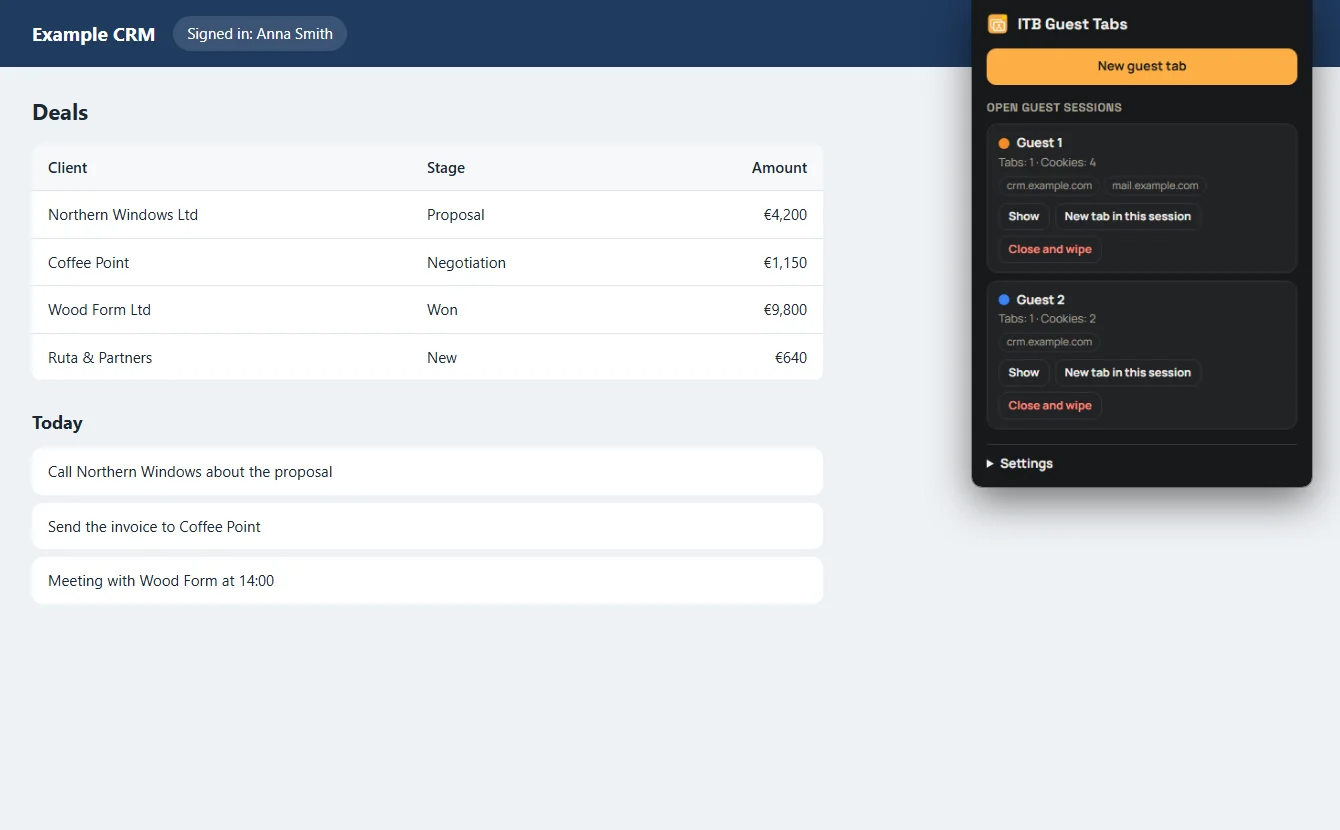
The first guest session is signed in to a demo CRM as Anna, the second as John. The extension's window lists both sessions, their tabs and the sites that set cookies.
ITB GUEST TABS 0.1.0
A new guest tab
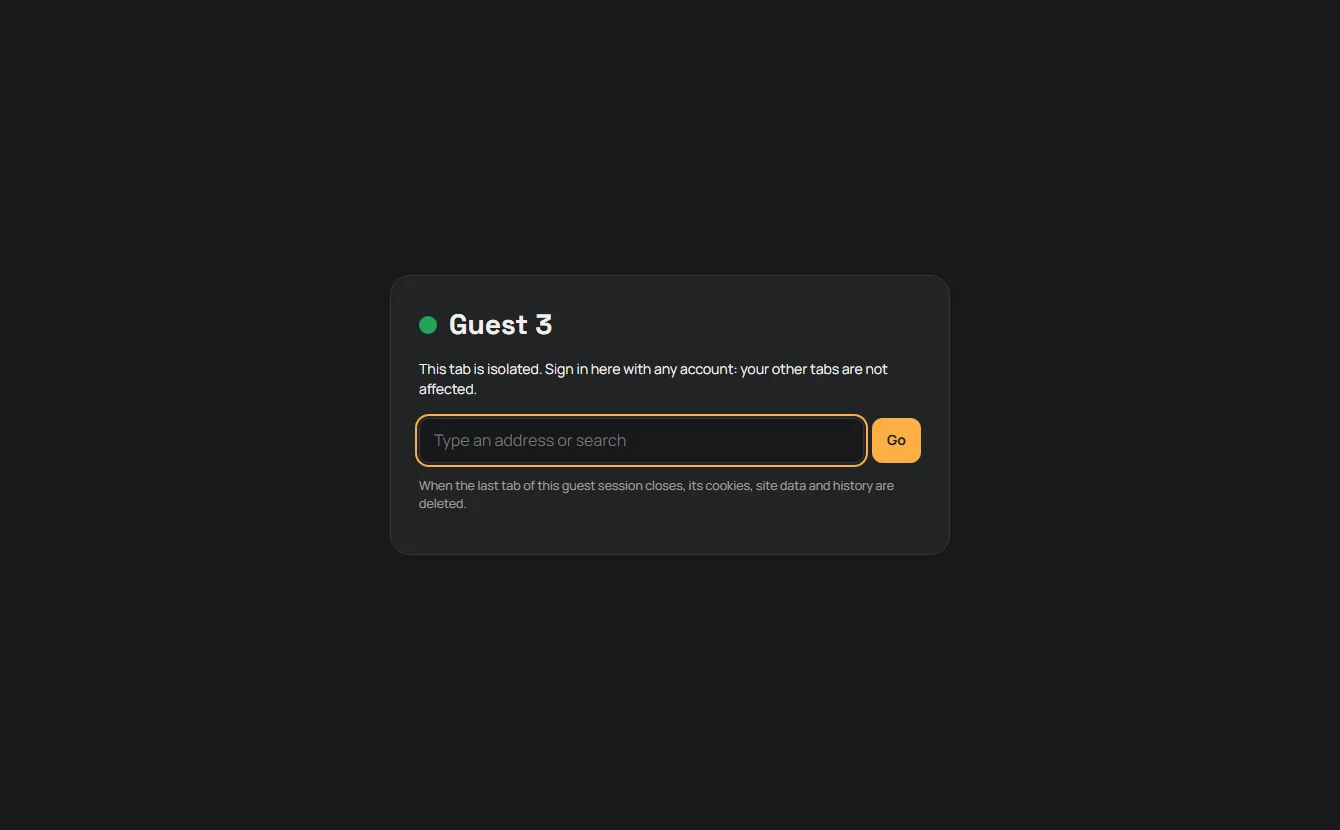
Every new session starts on this page. Type an address or a search and sign in with any account.
FEATURES
What ITB Guest Tabs does
Several accounts at once. Each guest session has its own cookies, so on the same site one tab can be signed in with one account and another tab with a different one. Your normal tabs stay signed in as they were.
Wiped on close, like guest mode. When the last tab of a session closes, its cookies, site storage (localStorage, IndexedDB, Cache Storage), its visits in the browsing history and the cached files of the sites it visited are deleted. If Chrome restores a guest tab after a restart, the extension closes it.
Links stay in the session. Links, new tabs and sign-in popups opened from a guest tab belong to the same session and see the same account.
Always clear where you are. Each session has a number and a colour: a coloured circle in front of the tab title and a G1, G2 badge on the extension's button. The extension's window lists every session with its tabs and the sites that set cookies, and from there you can show a session, open a new tab in it, or close and wipe it.
Quick to open. Open a guest tab with the toolbar button, Alt+Shift+G, or a right-click on a link or a page. Open this site as a guest opens the current page in a new session.
Data stays in the browser. No account and no server, and the extension has no analytics. Guest cookies are kept in the browser's memory only and never written to disk.
Lithuanian and English. The extension follows Chrome's language, and the light or dark theme follows the system setting.
WORTH KNOWING
Limits
- The downloads list, and passwords or form entries you chose to save, are not deleted when a session closes.
- Site service workers are off in guest tabs. If a site uses one in a normal tab, a guest tab removes it, and the site installs it again on your next normal visit.
- localStorage belongs to the tab: two tabs of the same session don't share it.
- The first page after signing in, or in a new tab, sometimes loads twice. That is the extension correcting a request that left before the guest cookies were in place.
- When you type an address, SameSite=Strict cookies are sent from the next click within the site, as when you arrive from a search result.
- Updating or reloading the extension signs open guest tabs out, because their cookies live in memory only.
VERSION 0.1.0 · 2026-11-24
Requirements
- Google Chrome 121 or later. The extension has been tested on Windows.
- Developer mode turned on at chrome://extensions, because the extension is installed from a folder rather than the Chrome Web Store.
- On a company PC, IT policy may block developer mode. Ask your IT administrator, or us.
- No account, sign-up or fee.
FAQ
Frequently asked questions
How is this different from Chrome profiles or a guest window?
A Chrome profile or a guest window opens in a separate window with its own settings. ITB Guest Tabs lets you use different accounts in tabs of the same window, next to your normal tabs, and deletes a session's cookies, data and history when it closes.
Why isn't the extension in the Chrome Web Store?
For now we distribute it only from this page. That is why Chrome installs it only in developer mode and doesn't update it. The extension's window tells you when a new version is out.
How do I update the extension?
When the extension's window shows that a new version is available, download the new ZIP and extract it over the same folder, replacing the files. Then click the round Reload arrow on the ITB Guest Tabs card at chrome://extensions, or restart Chrome. Open guest tabs will be signed out.
What is deleted when I close a guest tab?
Nothing, while the session still has another tab. When its last tab closes, the session's cookies, site storage, its visits in the browsing history and the cached files of the sites it visited are deleted (cache clearing can be turned off in the settings). The downloads list stays, as does anything you saved yourself: passwords, form entries, bookmarks.
Why does the extension need access to all sites and the history?
To change the cookies of guest tab requests and to delete a session's history when it closes. The extension does not store or send anything from your normal tabs. Its code is in the folder you extracted, and you can check the ZIP against the SHA-256 checksum on this page.
Does it work in Microsoft Edge?
The extension is built and tested for Google Chrome. Edge uses the same Chromium base, but we haven't tested the extension there yet.
How do I remove the extension?
Close the guest tabs, click Remove on the ITB Guest Tabs card at chrome://extensions, and delete the extracted folder.
What if a site doesn't work in a guest tab?
Tell us which site and what happened. From that we will find the cause and fix the extension.